CRM & SMS
This page is for the Executive and Event Manager personas reaching the contact list — SMS blasts via Twilio, automated email rules tied to event lifecycle, and the segment builder that feeds both. Live US SMS requires Twilio 10DLC carrier approval; ask your administrator before assuming a campaign will actually send.
What this is / Why you'd use it
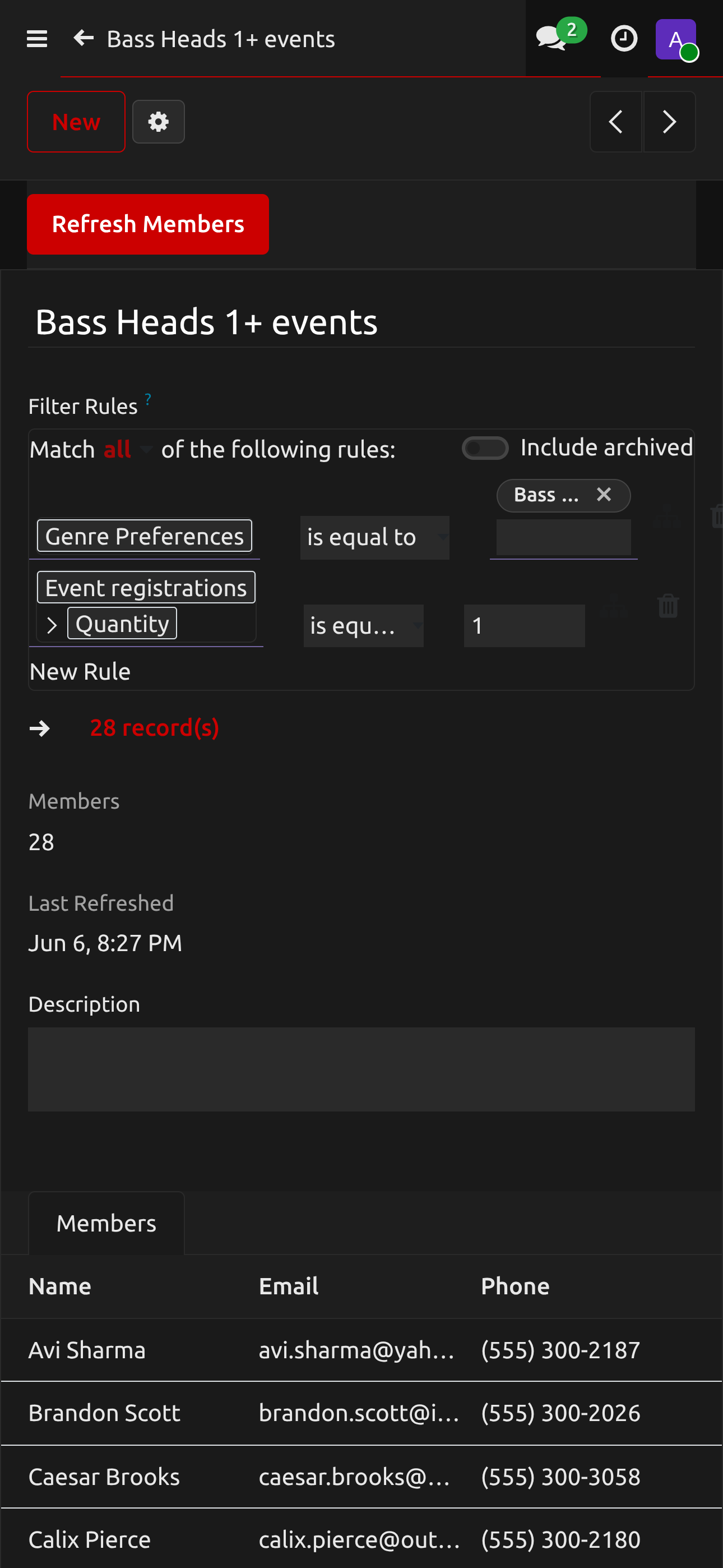
A segment is a saved filter on your contact list — you build one by asking questions like "who came to a techno event in the last 90 days?", then point an SMS blast or automated email at it. Segments are the unit of audience targeting here; both channels reach for them the same way.
Live SMS to US numbers requires 10DLC carrier approval. Until your administrator confirms approval has landed, blasts queue but Twilio won't actually deliver them — the campaign UI will look successful while no message reaches a phone. Ask before assuming a send went out.
Automated emails ride on the same segment-and-template pattern, but fire on event-lifecycle triggers (registration confirmed, N days before / after an event, N days since last attendance) rather than on a manual send button. The system checks for firing rules every hour.
You'd reach for this page when you want to text or email a slice of your audience — pre-event reminder, post-event recap, lapsed-attendee re-engagement, or any one-shot campaign tied to a promo code.
Creating a Contact Segment
- Go to CRM → Blaqbook → Segments → New
- Give the segment a name (e.g., "Techno Fans - Attended 2+ Events")
- Use the filter builder to define criteria:
- Genre tags, attendance count, total spend, last event date, opt-in status, etc.
- Click Refresh Segment to count how many contacts match
- Save
Sending an SMS Blast
Info
SMS requires Twilio 10DLC carrier approval before live sends work.
- Go to SMS → Campaigns → New
- Fill in:
- Name — internal label for the campaign
- Segment — the contact group to send to (built above)
- Template — pick a pre-built message or write a new one
- Scheduled Time — when to send (leave blank to send immediately)
- Click Schedule or Send Now
Using SMS Templates
- Go to SMS → Templates → New
- Write your message — use
{partner_name}and{event_name}as personalization placeholders (also called merge fields) - Optionally add a media URL for MMS (image/GIF)
- Save and use it in campaigns
Sending Automated Emails
Blaqbook replaces Odoo Enterprise's Marketing Automation with a lightweight automation rule set — each rule fires on its own schedule (typically every hour), so you don't have to click anything. Four templates are seeded out of the box (Ticket Confirmation, Event Announcement, Post-Event Recap, Re-Engagement); you wire them up via Automation Rules and the system fires them hourly.
Available triggers:
- On Registration Confirmed — fires when a registration moves from Draft → Registered (Stripe paid or manually marked)
- N Days Before Event — pre-event reminder (set the day count)
- N Days After Event — post-event recap or thank-you
- N Days Since Last Event — re-engagement for lapsed attendees
Create an automation rule:
- Go to CRM → Blaqbook → Email Automations → New
- Fill in:
- Rule Name — e.g., "3-day reminder"
- Trigger — pick one of the four triggers
- Delay (days) — number of days for time-based triggers (ignored for "On Registration Confirmed")
- Email Template — pick from the four seeded templates (or one you've authored)
- Limit to Segment (optional) — only send to partners in this segment
- Limit to Event (optional) — only fire for one specific event
- Save and toggle Active on
Verify a send went out:
- Go to CRM → Blaqbook → Email Send Log
- Filter by partner, event, or template name
- Each row shows sent date, status, and which automation fired it — used to confirm deliveries and prevent duplicate sends
The automation checks every hour. To force an immediate run for testing: Settings → Technical → Scheduled Actions → Blaqbook: Process Email Automations → Run Manually.
FAQ — CRM & SMS
SMS messages aren't sending.
Twilio 10DLC carrier approval is required for US SMS. Until that's approved, no messages will go through. Check the campaign status — it will show an error if Twilio returns one. Contact your administrator for the approval status.
Why didn't the post-event email go out?
Email automations run hourly on their own schedule, not instantly. If a rule's trigger window opened five minutes ago, expect the send within the hour. To check: open CRM → Blaqbook → Email Send Log and search for the partner — if there's no row, the rule either hasn't fired yet, didn't match the partner's segment/event filter, or already sent (the log prevents duplicates). To force an immediate run: Settings → Technical → Scheduled Actions → Blaqbook: Process Email Automations → Run Manually.
Walkthrough: An SMS Blast to Your Techno Audience
You've got a techno-leaning Friday in two weeks. Past data tells you the same 200 people drive most techno-night ticket sales. This walkthrough goes from "who exactly?" to "verified delivered" without sending the wrong message to the wrong list.
The scenario: a Berghain-flavored Friday at Velvet Room, doors 11pm, headliner just announced. You want to SMS your techno-engaged audience with a 15% code that expires at midnight Wednesday (see Promo Code walkthrough for how to build the code itself).
Plan the segment before you build it
Two minutes on paper saves an embarrassing send. Decide:
- What past behavior says "techno fan"? Attended events tagged with a techno genre, or bought tickets to events with specific DJs on the lineup. Pick one signal; you can layer more later.
- What's the floor? 1 event = anyone who walked through your door once, including random tourists. 2+ events = repeat customer, much higher conversion. Default to 2+ unless your list is small.
- What's the cap? Lapsed contacts (no event in 12 months) probably aren't worth a paid SMS send. Filter them out at segment build time.
- Opt-in status. Anyone who opted out of SMS must be excluded — Blaqbook respects this automatically but verify after segment refresh.
Build the segment
- CRM → Blaqbook → Segments → New.
- Name →
Techno fans 2+ events 2026. The year suffix is gold for the audit trail when you re-run this segment next year and wonder which one you blasted last spring. - Filter criteria. Stack filters for: event genre tag (contains
techno), attendance count (≥ 2), last event date (within 12 months), opt-in status (enabled). See Creating a Contact Segment for the full criteria list. - Refresh Segment. The match count appears at the top of the form. If it's under 20, your filter is too tight or your data is too thin — loosen the attendance floor or extend the date window before sending. If it's over 1000, double-check you didn't accidentally drop the genre filter.
- Save.
Author the template
You could write the message directly inside the campaign, but reusable templates pay off after three or four campaigns.
- SMS → Templates → New.
- Name →
Techno presale 15% — generic(descriptive enough to grab from a list of 30 later). -
Message body → keep it short. Carriers count SMS at 160 characters; longer messages split into multiple billed parts. Example:
Hi {partner_name} — techno Friday at Velvet, headliner announced. 15% off until Wed midnight: VELVET15 {event_link} -
Save. The template is now reusable across campaigns.
Verify Twilio is approved before scheduling
Danger
Skip this and you'll schedule a campaign that silently never sends.
Live US SMS requires Twilio 10DLC carrier approval — confirm with your administrator that the brand and campaign are approved before you press Send Now or Schedule. If approval is pending, the campaign queues but Twilio rejects every message.
Create the campaign
- SMS → Campaigns → New.
- Name →
Velvet techno Fri presale. - Segment → pick the segment you just built. The expected recipient count appears next to the field — sanity-check it matches the segment refresh number from earlier.
- Template → pick the template you just created.
- Scheduled Time → blank for immediate, or pick a future timestamp. Experiment with day-of-week and time-of-day across campaigns; your audience's response window is its own data point.
- Schedule (if you set a time) or Send Now.
Verify the send actually went out
Even a successful Twilio handoff doesn't mean every recipient got the message — Twilio returns per-message status (delivered, failed, undelivered) on each record.
- SMS → Campaigns → [your campaign]. The form lists every recipient with their Twilio status.
- Spot-check 3-4 failures. Common causes: phone number is a landline, carrier blocked the brand, recipient previously replied STOP.
- If the overall failure rate is over 10%, talk to your administrator before the next campaign — there's a carrier or registration issue to fix.
Patterns worth knowing
- Two-touch campaigns. Announcement Tuesday, urgency reminder Thursday. Same segment, different templates.
- Don't double-blast over the same window as email automation. Check CRM → Blaqbook → Email Send Log for the next 24 hours — if an automated email is scheduled to a similar audience, you'll annoy people getting hit twice.
- Re-use segments, version templates. Segments tend to be stable (genre + behavior); templates rotate per campaign. Don't fork a segment just to change the message body.
Walkthrough: Re-engaging Lapsed Attendees
The scenario: it's spring 2026 and you've got a few hundred contacts who last attended a show 12+ months ago. You want to bring some fraction of them back with a one-shot "we miss you" campaign tied to an early-bird discount on next month's lineup. This walkthrough goes from "who counts as lapsed?" through "did it actually work?".
Step 1 — Define lapsed
There's no universal definition. Pick one your data supports and write it down for the audit trail:
- 12+ months since their last attended event. The classic. Strong signal they've drifted.
- 90+ days since last event (more aggressive). Treats short-cycle audiences (weekly residents) different from year-cycle audiences (festival-only attendees).
- Attended ≥ 1 event historically. Anyone who never attended isn't lapsed; they're a contact who got captured (newsletter signup, ticket-page browser). Don't include them — different funnel.
For this walkthrough, lapsed = attended ≥ 1 event AND last event date over 12 months ago AND opt-in status enabled.
Step 2 — Build the lapsed segment
- CRM → Blaqbook → Segments → New.
- Name →
Lapsed 12mo — spring 2026 reactivation. Date the segment name; you'll re-run this every quarter and want the audit trail. - Filter criteria. Stack: attendance count ≥ 1, last event date NOT within the last 365 days, opt-in status enabled. See Creating a Contact Segment for the criteria list.
- Refresh Segment. Sanity-check the count. If it's much larger than expected, double-check you got the date filter direction right (you want OUTSIDE the last 12 months, not INSIDE).
- Save.
Step 3 — Pick email or SMS for the touchpoint
Lapsed campaigns are cost-sensitive — you're spending money reaching people who already proved they're hard to convert. Match the channel to the cost:
- Email — effectively free. Default to this. Higher tolerance for missed opens (which will be common for lapsed contacts; many of those emails get marked as promotional).
- SMS — paid per send via Twilio. Use only for high-confidence segments (e.g., 90-day lapsed who attended ≥ 3 events historically — these are warmer). Skip SMS for the 12+ month bucket; too cold, too expensive.
For a spring reactivation of 12-month-lapsed contacts, go with email.
Step 4 — Write a re-engagement template
The tone matters more than the deal. A lapsed contact reading "BUY NOW 50% OFF" hears noise; a lapsed contact reading "haven't seen you in a while — here's what we've been up to" hears a person.
- Use the seeded Re-Engagement email template as a starting point (see Sending Automated Emails for the seeded list).
- Subject → something specific, like
Velvet Room, spring 2026 — back for the new lineup?. Avoid generic "we miss you" subjects; those get ignored. - Body — short. Acknowledge time has passed, share one or two genuinely interesting changes (new venue, new resident, new genre night), include a single CTA with a promo code. Don't oversell.
- Save.
Step 5 — Send the one-shot campaign
This is a one-time send, not an automation rule. Use a manual campaign:
- Open an email campaign form (your install's path to "send this template to this segment now").
- Name →
Spring 2026 reactivation — 12mo lapsed. - Segment → the segment you just built.
- Template → the re-engagement template.
- Scheduled Time → Tuesday or Wednesday morning tends to work better than weekends for promotional email. Set it 24 hours out so you can review before it fires.
- Schedule.
Step 6 — Measure what came back
The lapsed reactivation campaign's value is measured in tickets sold to attached event(s) by people in that segment. Two weeks after the send:
- CRM → Blaqbook → Email Send Log. Filter by the campaign name. The basics — sent, opened (if your sender tracks it), bounced.
- Events → [next event] → Registrations. Cross-reference the buyer emails against the campaign send list. Any registration whose buyer was in the lapsed segment is a successful reactivation.
- A 2–5% reactivation rate is common; double digits is great. Even if the email itself was unprofitable on the spreadsheet, you've now updated the "last event date" for the people who came back — they're not lapsed anymore.
Always-on alternative: automation rule
Instead of (or alongside) the quarterly one-shot, set up a recurring trigger:
- CRM → Blaqbook → Email Automations → New.
- Trigger → N Days Since Last Event. Set to 365 (or whatever lapsed threshold you picked).
- Email Template → your re-engagement template.
- Limit to Segment → optionally narrow to attended ≥ 2 events (warmer audience).
- Save and toggle Active on.
Every contact who passes the 365-day mark now gets the re-engagement email automatically. Slower-burning than the quarterly campaign, but lower-effort. See Sending Automated Emails for the rule list UI.
Patterns worth knowing
- Don't blast lapsed and active segments at the same time. If you've got both a "next show!" campaign and a "we miss you" campaign in flight, the active segment shouldn't get the lapsed message. Stagger by 48 hours or filter the overlap.
- Skip frequent rerunning. Quarterly is enough. Lapsed contacts who didn't respond to two quarters of re-engagement aren't lapsed — they're gone. Move them to an Archive tag and stop spending.
- Track the segment count over time. If the lapsed segment keeps growing while your active segment shrinks, the bigger problem is upstream (acquisition, retention) — re-engagement won't fix that.
Related
- Events — registrations feed the segment builder; event lifecycle drives automation triggers
- Dashboards — the Executive dashboard surfaces referral conversion counts pulled from this data