Finance
This page is for the Executive and Finance personas — anyone running event P&L, paying vendors, or reconciling bills. The Finance Dashboard has the high-level KPI view; this page walks the deeper workflows.
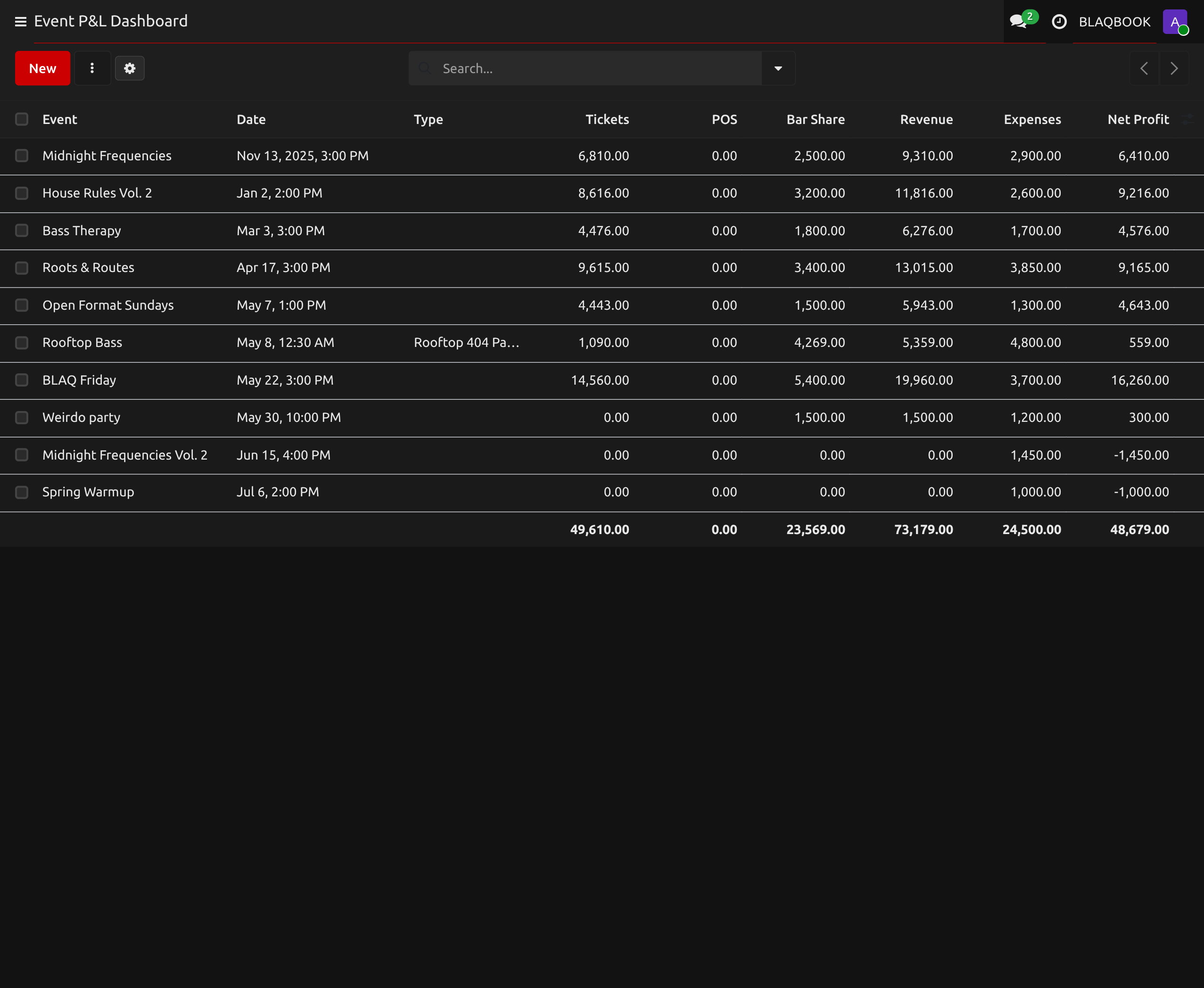
What this is / Why you'd use it
P&L stands for profit-and-loss — a snapshot of how much money an event made or lost. You run one after every event closes, once Stripe webhooks have settled (usually the next morning).
The P&L pulls four categories together on one page: ticket revenue (online buyers via Stripe), POS revenue (door cash sales and merch), vendor costs (what you paid DJs, security, sound), and other expenses (ice runs, the last-minute extra guard, anything you typed in as an ad-hoc line). Net = revenue − expenses. Green row = profit; red row = loss.
You'd reach for this page when you close out a show on Saturday morning, when a vendor bill needs to be paid, or when the bank deposit from Stripe doesn't match what you remember selling. The Reconciling a Stripe Payout walkthrough covers that last case end-to-end.
Running a P&L Report After the Event
- Go to Events → P&L Dashboard
- Find your event in the list
- Green row = profitable
- Red row = loss
- Click the event name to open the detailed P&L tab showing:
- Ticket revenue (from Stripe/online sales)
- POS revenue (door sales + merch)
- Bar revenue share (if applicable)
- Total revenue
- Vendor costs (all assigned vendor slots)
- Other expenses
- Net profit/loss
To add expenses that aren't vendor bills:
- Open the event → P&L tab
- Scroll to the Expenses section → Add a line
- Enter description, amount, and category
Adding a Vendor and Generating Their Bill
Assign a vendor to an event:
- Open the event form
- Click the Vendors tab
- Click Add a line in the vendor slots table
- Select:
- Role — Sound, Stage, DJ Equipment, Lighting, Security, Medical, Staff, etc.
- Vendor — select from contacts (or create a new one)
- Agreed Rate — what you're paying them
- Check Paid once payment is made
Create draft bills for all vendors at once:
- Open the event form → Vendors tab
- Click Create Draft Vendor Bills (button at top of the tab)
- This creates one unpaid bill per vendor in the Accounting module
- Go to Invoicing → Vendors → Bills to review and pay them
Add vendor contact details:
- Go to CRM → Contacts → find the vendor's contact
- Click Edit
- Fill in the Blaqbook Vendor tab:
- Roles they can fill
- Preferred payment method
- Reliability rating (0–5)
- Notes
FAQ — Finance
A vendor bill was created by accident — how do I delete it?
- Go to Invoicing → Vendors → Bills
- Open the bill → click Reset to Draft if it's been confirmed
- Delete using the Action menu → Delete
The P&L shows $0 for ticket revenue.
Ticket revenue is only counted when registrations are in open (Registered) or done (Attended) state and linked to a confirmed Stripe sale order. If someone has a draft registration, their sale hasn't cleared yet.
What if my numbers don't match?
Three usual suspects when the P&L disagrees with your bank deposit or your gut. First, a Stripe webhook hasn't landed yet — Stripe occasionally lags a few minutes between buyer payment and the registration flipping to Registered, so a fresh P&L right after the event can undercount. Second, a registration is stuck in Draft state (buyer's checkout never completed) — the P&L excludes it but the buyer may still claim they paid. Third, a door POS session hasn't been closed yet — cash sales don't post to POS revenue until the session is reconciled and closed.
Walkthrough: Reconciling a Stripe Payout
The hard part of running event finance is that Stripe doesn't pay you immediately. A buyer hits "pay" Friday at 10pm; Stripe holds the funds; the next payout drops in your bank account Tuesday morning. By then you've also had POS cash sales, vendor bills, and an ice run. The job here is matching the Tuesday bank deposit back to specific event revenue so the P&L tells you the truth.
The scenario: you ran Velvet Friday last week. Stripe collected $4,800 across 192 tickets. Your bank account just got credited $4,656 from Stripe Tuesday morning. You want to know: does that match what the P&L says, and where's the gap?
Step 1 — Get the Stripe-side number
- Open your Stripe dashboard → Payments → Payouts (or Balance → Payouts; Stripe shuffles this menu).
- Find Tuesday's payout. Open it.
- Note three numbers:
- Gross amount — sum of all charges in this payout window
- Fees — Stripe's per-transaction take (typically 2.9% + $0.30 per US card)
- Net amount — what actually hit your bank
- Open the transactions list inside the payout. Each row should map back to a confirmed registration in Odoo.
Step 2 — Get the Odoo-side number
- Events → P&L Dashboard → Velvet Friday.
- Note the Ticket revenue figure. This is the gross sum of all sale orders linked to confirmed registrations for that event.
The P&L gross number should equal the Stripe gross number for tickets sold online. If they don't match, you've got one of:
- A registration in Draft state because Stripe didn't return success on the webhook. Open Registrations, search for Draft state, and investigate each one (see the FAQ above).
- A refund processed in Stripe but not reflected in Odoo (registration still marked Registered). Cancel the registration to bring numbers in line.
- Tickets sold via POS at the door (cash or terminal). Those don't go through Stripe — they're a separate revenue stream and appear in the P&L's POS revenue line, not Ticket revenue.
Step 3 — Subtract the fees
Stripe fees don't show up automatically as an event expense in Blaqbook's P&L — they live in your Accounting module under a "Bank charges" or similar account. The P&L shows gross ticket revenue; you have to subtract Stripe fees to get cash-in-pocket. Two ways to handle this:
- Track them per event. Add a line under P&L tab → Expenses → Add a line with the Stripe fee total for the event. Description:
Stripe fees. This gives a true net P&L per event. - Track them globally. Let Stripe fees post to a generic bank-charges account at the month's bank reconciliation. Faster, but per-event P&L overstates profit by roughly 3% of ticket revenue.
Pick one approach and stick with it across all events so trend comparisons are honest.
Step 4 — Match the bank deposit to the event(s)
Stripe payouts often bundle multiple events. A Tuesday payout might cover Friday's Velvet show plus Saturday's smaller side party plus ticket presales for next month's event. Don't expect a 1:1 mapping between bank deposit and event.
- Inside the Stripe payout, group the transactions by event mentally — the sale order description usually references the event name.
- Confirm each event's contribution to the payout matches that event's Odoo gross ticket revenue.
For ongoing presales, the cash sits in your bank well before the event date. That's normal; the cost side (vendor bills) hasn't accrued yet, so the P&L will look temporarily profitable until you fill in vendor slots and post the bills.
Step 5 — Compute net-for-the-night
Once gross revenue and Stripe fees are both squared, the rest is the P&L Dashboard doing what it does:
- Total revenue = ticket revenue + POS revenue + (bar revenue share, if applicable)
- Total expenses = vendor bills (draft + posted) + ad-hoc expense lines (incl. Stripe fees if you tracked them per event)
- Net = total revenue − total expenses
The P&L Dashboard row color is the quick read: green = profit, red = loss. Click in for the breakdown.
Patterns worth knowing
- Stripe holds funds longer for new accounts. The first 7–14 days of Stripe activity, the holding period stretches. Tell the team to expect a lag. After that, it settles into a typical 2-business-day delay.
- Disputes hit hours-to-days after the event. A chargeback in Stripe debits your next payout. The P&L doesn't auto-update — you'll see it when the next payout lands lighter than expected. Track disputed charges manually until you've reconciled them.
- Year-end is when the gap matters. If you've been ignoring per-event Stripe fees all year, January reconciliation will show a 3% gap across every event. Easier to track per-event from the start.
Related
- Events — the vendor slot list and registrations are the upstream source of P&L numbers
- Dashboards — KPI row, invoice inbox, payment calendar for the same data