Door Scanner
This page is for the Door / Crew and Trusted Staff personas working the entrance on event night. The scanner is a web page — no app to install, no per-device setup. If your phone has a camera and a browser, it works. The Door Dashboard has a one-tap link to open it.
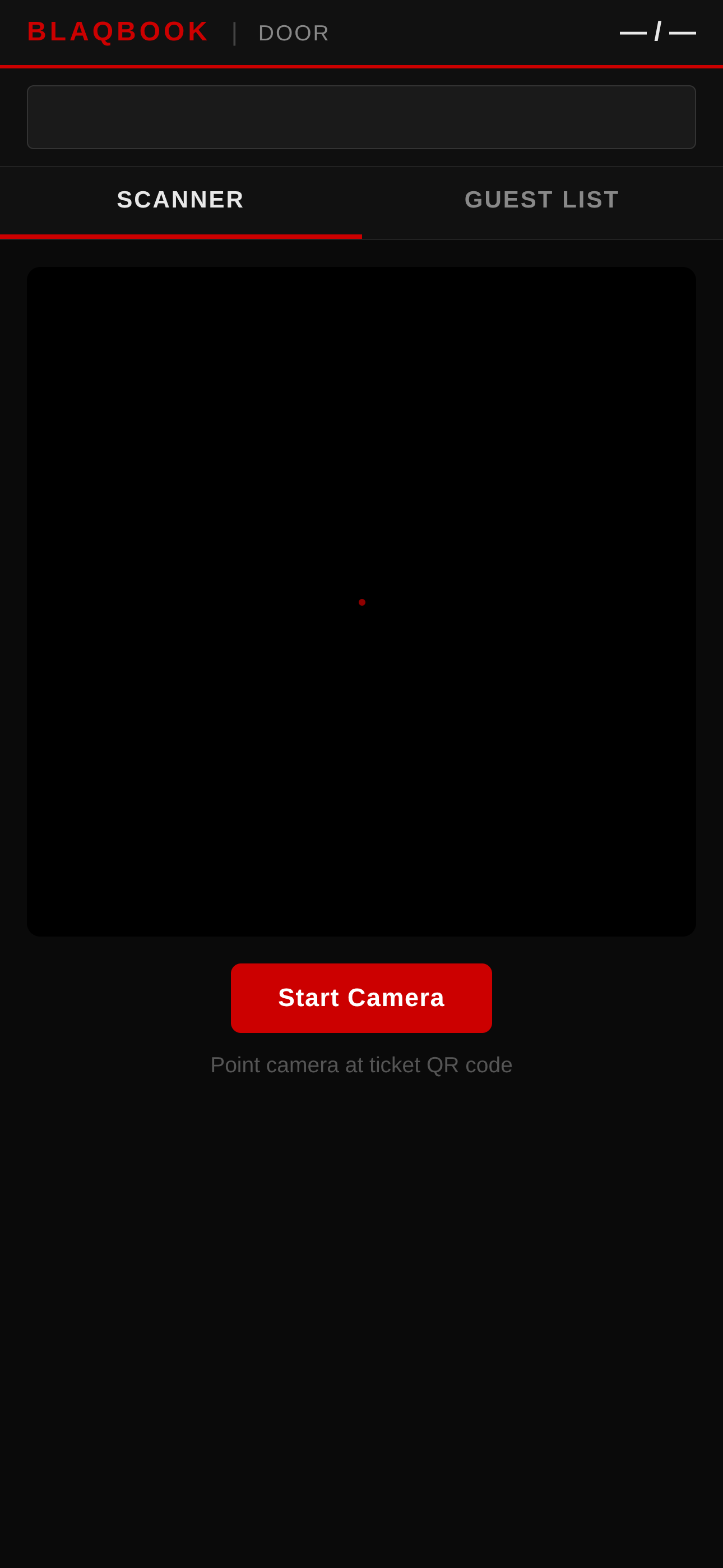
Guests get an email after they buy a ticket with a QR code. At the door, you point your phone's camera at that code and Blaqbook tells you if it's valid. Works on any phone — no app needed, no per-device setup.
Using the Door Scanner on Event Night
The scanner works on any smartphone — no app download needed.
- Open a browser on your phone and go to:
https://[your-domain]/blaqbook/scanner - Log in if prompted (use the Door/Crew account provided)
- Select the event from the dropdown
- Point the camera at the QR code on a guest's ticket
- Results:
- Green checkmark = valid ticket, guest is now marked Attended
- Red X = invalid, already scanned, or wrong event (the screen shows the reason)
- The attendee count at the top updates in real time
Manual Guest-List Check-In
Sometimes a guest can't pull up their ticket — phone dead, email lost, whatever. You can mark them attended manually from the backend.
- In the backend, go to Events → [event name] → Registrations
- Find the guest by name or email
- Click their registration → click the Attended status label at the top of the form
Adding a Comp (Free) Ticket at the Door
- Go to Events → [event name] → Registrations → New
- Enter the guest's name and email
- Set ticket type to the comp tier and price to $0.00
- Set status to Registered
FAQ — Door Scanner
The door scanner shows a red X — why?
Common reasons:
- Ticket already scanned (duplicate check-in blocked)
- Wrong event selected in the scanner dropdown
- Registration is still in "Draft" state (payment may not have cleared)
- Ticket QR code belongs to a different event
A guest says they bought a ticket but can't find the email.
- Go to Events → [event] → Registrations
- Search by the guest's email
- If found, open their registration and click Send Email to resend the confirmation
Walkthrough: Red X Triage at the Door
The FAQ above lists the four reasons a scan returns a red X. This walkthrough is what you actually do at 11pm Friday with 30 people behind the person blocking the line.
First rule — don't hold up the line
Move the red-X person aside (literally — "hey, come over here for a sec") and signal the next person to scan. Solve their problem in parallel, not in sequence.
Decide which red X you've got
The scanner screen tells you. Read it before doing anything else.
| Red X message | What it actually means | Where to go next |
|---|---|---|
| "Already scanned" | This QR was already used to check someone in tonight. | Already-scanned flow below |
| "Wrong event" | The QR is valid but belongs to a different event. | Wrong-event flow below |
| "Registration in Draft" | Stripe didn't return a successful payment, so the ticket is unconfirmed. | Draft-state flow below |
| Unknown / generic error | Camera misread the QR, or the QR isn't a Blaqbook ticket. | Generic flow below |
Already scanned
Most common red X. Someone is either:
- Re-entering the venue (the door already let them in once and your re-entry stamp / wristband should be on them — check before sending them back outside)
- A friend or partner showing the same QR (one ticket = one entry; the buyer needs to buy a second ticket)
- Trying to use a screenshot of a friend's ticket (same as above)
To handle:
- Check for a stamp or wristband. If they were inside earlier and stepped out, let them in — your scanner doesn't track re-entries.
- If they don't have a stamp, ask politely: "When did you come in tonight?" Their answer tells you whether it's a re-entry or a duplicate.
- If it's a duplicate, they need to buy a ticket. Send them to the POS (see Friday-Night POS) or to your manager.
Wrong event
Less common. Someone bought a ticket to next month's show and is showing up to tonight's. Or the scanner dropdown got bumped to the wrong event.
To handle:
- Check the scanner's event dropdown at the top. Is it set to tonight? If not, fix it and re-scan.
- If the scanner is correct, the buyer's QR is for a different event. They show you their email confirmation — sure enough, it says next Saturday, not tonight.
- Their ticket is still valid for that future date. They're at the wrong show. Apologize, don't refund (the ticket is for a real event they can still attend), and either send them away or sell them a ticket for tonight at the POS.
Draft state
Their payment didn't clear. Stripe took the card info but never returned a success callback to Odoo. Most often the card was declined, Stripe failed for some reason, or a webhook didn't reach Odoo.
To handle:
- Have them check their email for a Stripe-side payment confirmation. If they don't have one, the payment never went through. Send them to the POS to buy a ticket fresh.
- If they DO have a Stripe receipt but their Odoo registration is Draft, the webhook missed. Rare but real. Walk them to the manager:
- Manager opens Events → [event] → Registrations on a backend tablet
- Manager finds the buyer's registration
- Manager clicks the Registered state label to manually confirm it
- Buyer re-scans; will now show green
- Note in the chatter on that registration:
Manual confirm — Stripe webhook missed, buyer showed receipt. For audit.
See Manual Guest-List Check-In above for the backend flow.
Generic error
Something else: blurry camera, QR is too dark in the lighting, buyer's phone glare, or the QR isn't a Blaqbook ticket at all.
To handle:
- Have them brighten their phone screen to max.
- Re-scan. If it still fails, fall back to manual check-in — get their name and use Manual Guest-List Check-In to mark them Attended from the backend.
Lost-email at the door
Adjacent flow that doesn't trigger a red X (they have no QR to scan in the first place), but worth covering here because the door staff sees it constantly.
- "I bought a ticket but can't find the email."
- Ask their name and the email they bought under. Send them to the manager (don't try to do this on your scanning phone).
- Manager does the Manual Guest-List Check-In flow: backend → Registrations → search by email → click Attended.
- If the manager can't find them in Registrations, they probably didn't actually buy a ticket. Send to POS or politely turn away.
Comp ticket on the spot
Adjacent flow: someone's on the DJ's guest list but you can't find them in the regs.
- Walk them to the manager.
- Manager either: (a) uses a configured door-staff override promo code to issue a free ticket through the POS, or (b) creates a registration manually via Adding a Comp Ticket.
- Either way the buyer gets a QR. They walk back to you, you scan green, done.
Patterns worth knowing
- Pre-event briefing. Before doors at 9pm, walk your door staff through these four red X cases. Five minutes saves you twenty minutes of confused stalling at 11pm.
- Manager always has the backend open. Friday night the manager runs the floor with a tablet logged into Odoo so they can do manual confirms and lookups without sprinting to the office. The Door Dashboard → Guest Lookup field is built exactly for this.
- Trust the scan, don't override. If someone insists they bought a ticket but the scanner says No, don't argue from memory — open the backend and look. The data is the data.
Related
- Events — create the event, set ticket tiers, view the guest list
- Dashboards — the Door Dashboard has check-in counts and a guest lookup